
A QR code beside an exhibit can open an audio clip, transcript, translation, or longer explanation. It lets a visitor choose how much to explore. The page should add context to the object, not require a scan before someone can understand the basic label.
Choose one destination per exhibit
Give each object or room a stable page with a clear title, the audio or text, and any credits. If the tour uses numbered stops, keep the printed number and page title consistent. A wrong stop is easy to miss when visitors are wearing headphones.
For an audio tour, make the play controls obvious and check that playback works in the phone browsers visitors use. Include a transcript for people who can’t or don’t want to listen. If you offer translations, label each language and test the visitor can find it without going back to the gallery entrance.
Keep the first screen useful: show the stop number and exhibit name before the play button, then offer the transcript and language choices nearby. Let visitors start and pause audio themselves, and keep the page readable without sound. If the tour covers several rooms, include a stop list or a clear next-stop link so visitors can recover when they skip ahead.
Create and place the QR code
Copy the exhibit page URL and paste it into the Link option in BlissQR’s QR code editor. Download the image and test it from the final label size and placement. Keep the code away from glare and surfaces where visitors need to stand too close to another person or object.
Add a short call to action such as “Scan to hear the story”. Keep the exhibit title and a short URL visible beside the code. The label should still tell visitors the object’s name without a scan.
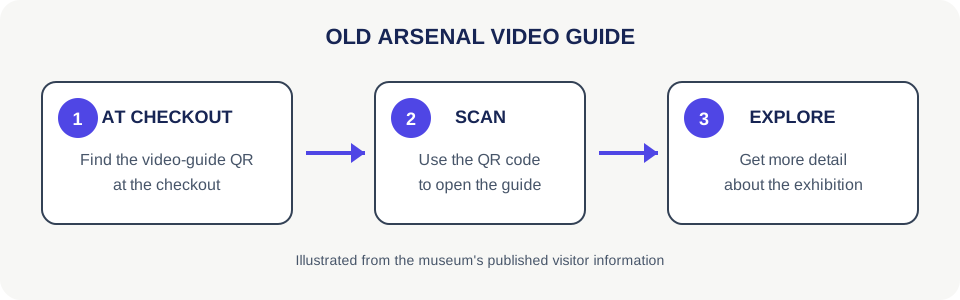
The National Museum of Lithuania’s Old Arsenal makes a video-guide QR code available at the checkout, where visitors can scan it for more detail about the exhibition. It’s a useful example of offering an optional digital guide at a clear starting point. The museum’s visitor information describes the setup.
Test for visitors, not just staff
Check the page using mobile data and a phone that isn’t signed in to the museum’s content system. Try the audio with sound on and with headphones, test the transcript, and make sure the page works with increased text size. If the gallery has weak reception, tell visitors where Wi-Fi is available or provide another way to access the tour.
The Milwaukee Art Museum lists free Wi-Fi across its campus and offers free audio guides through mam.org/guide; it asks visitors to bring headphones and a phone. A venue network can help when mobile data is poor, but check that the guide loads over it from inside the galleries before relying on it. The museum’s visitor page lists both services.
Review links when an exhibit closes or content changes. Remove signs that point to a temporary page, or update the destination to a useful archive page before the gallery is rearranged.
Ask someone who hasn’t helped build the tour to follow it from the entrance using only the signs and pages. That catches labels that make sense to staff but leave visitors unsure where to go next. Check the route with a wheelchair user or venue accessibility lead too, especially where a stop is reached by stairs or a narrow passage. For a QR code that points visitors to the venue or a specific entrance, see how to create a QR code for Google Maps.