A Google Maps QR code can help someone find a shop entrance, event venue, collection point, or meeting place without typing an address. The useful part is the destination you choose. A code that opens the wrong branch or a vague search result only moves the confusion to a phone.
Copy a Maps link or use coordinates
In Google Maps, find the exact place or route you want to share and use the Share option to copy its link. Google explains the current flow in Share a map or directions with others. Open the copied link yourself and check the pin, route, and starting point before you turn it into a code.
For a place, search for it or drop a pin, open the place details, and choose Share. For directions, enter the start and destination, choose the route, then share that route. A shared route can include a starting point that will be wrong for someone approaching from elsewhere, so use a place link when the visitor should choose their own route.
For a simple map marker, BlissQR’s Location option encodes a geographic coordinate and label. For a Google Maps place page or a directions link, use the Link option in the QR code editor and paste in the Maps URL. These destinations are different: a coordinate points to a spot, while a Maps URL can preserve a place listing or route.
Make the destination useful
Use the entrance visitors should actually use, not just the centre of a large building. For a campus, hospital, market, or festival site, a nearby entrance or meeting point can be more helpful than the official street address. If visitors need a route from a particular station or car park, make that route explicit in the call to action.
Add plain text beside the printed code, such as “Scan for directions to the east entrance”. Keep the address readable too. Someone may not have a working camera, mobile data, or a QR scanner available.
For a building with several doors, put one code at each approach and name the door in the caption. For an event, check that the route still points to the right entrance after any road closure or venue update. Test a link with the Google Maps app installed and another in a browser, since people won’t all have the same setup.
Test the link on phones
Scan the finished code on both iPhone and Android if you can. Confirm that it opens the intended place or route, that the map isn’t centred on a nearby business, and that a person can continue in a browser if they don’t use the Google Maps app. Test from the printed sign at its real size and viewing distance.
For multiple locations, create a separate code for each destination and label the source artwork clearly. A QR code stores its destination; it doesn’t know that a branch has moved. If a route or location changes, update the printed destination through a page you control or replace the code and the sign.
Example: a venue’s street address may place a visitor at the service entrance. Choose the public entrance on the map, open that pin, and caption the code “Scan for the east entrance”. Check the pin on the map before printing. For property signs that also link to listing details or viewing information, see QR codes for real estate listings.
Real-location map example: the Old Arsenal in Vilnius
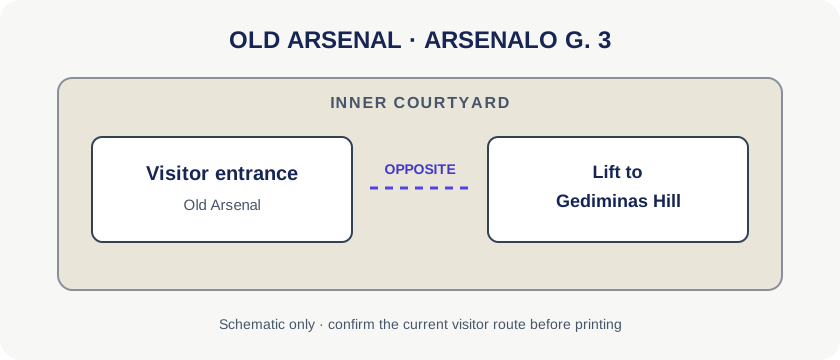
The National Museum of Lithuania lists its Old Arsenal at Arsenalo g. 3 and says the visitor entrance is in the inner courtyard, opposite the lift to Gediminas Hill. A QR code can open the Old Arsenal place listing or a coordinate-only pin at 54.687934, 25.290887. The place link shows the venue’s name and details; the coordinate link opens a map pin.
The museum’s visitor directions confirm the entrance note. Google’s pin identifies the venue, not a verified door location; check the approach from the visitor’s side before printing.